
Last Updated on 15 July 2025 by Maelle
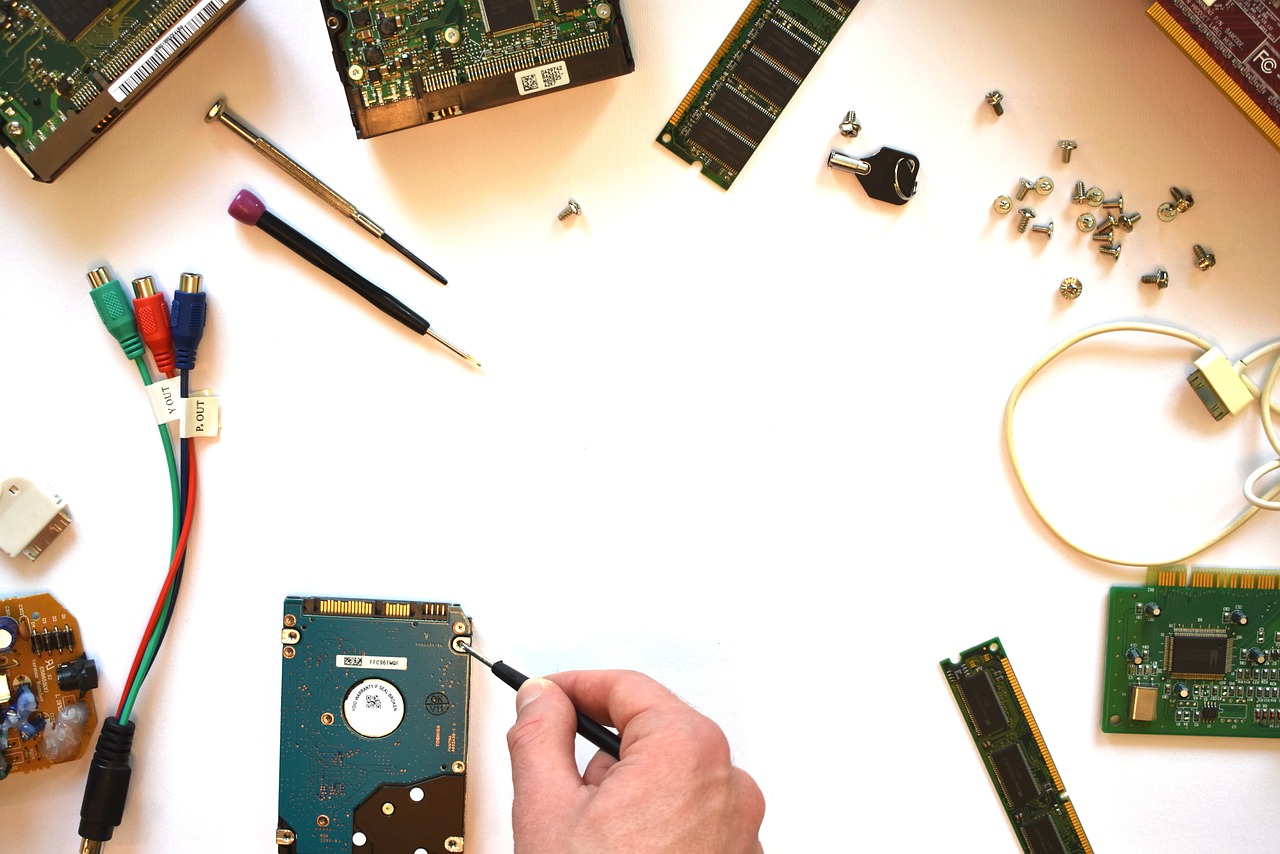
A large part of the business world is mobile and needs computing power adapted to this mobility. Over the years, laptops have gone from bulky and heavy to thin and light. But, despite all the improvements in power, size, capacity and memory, laptop problems still occur quite regularly. This is why everything-repair.fr offers you a list of 6 steps to repair a laptop!
Step 1: General Information Laptops: Hardware Overview
Below is a list of hardware components to check:
CPU fan:
to help keep the laptop cooler.
Heat sink/heat pipe:
made for the laptop so that it does not overheat, allowing air circulation in a compressed space.
CPU base:
allows you to insert the CPU (central processing unit) into the base.
CPU:
central processing unit – executes program instructions. (the core)
Hard disk:
Stores data persistently
CMOS battery:
battery in the motherboard used for things like bios.
Wireless card:
adding wireless options to a laptop.
Speakers:
whose obvious objective is to create sound and which are fixed to the motherboard.
RAM:
Computer memory that can be accessed randomly, that’s how we could describe it.
Battery :
The main power source for a laptop. (Make sure it’s plugged in so the laptop turns on before everything else).
Step 2: Proper Maintenance and Care of a Laptop
Physical Maintenance of the Laptop
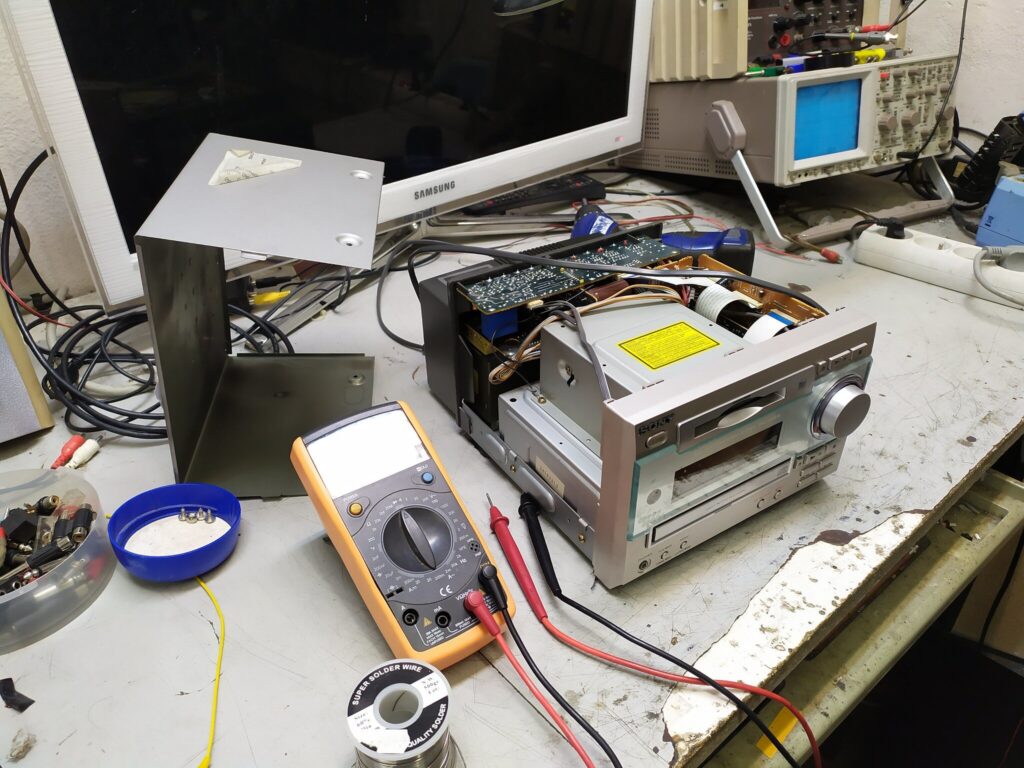
For repair a computer If you’re using a laptop, you’ll need several screwdrivers to remove the covering, such as a Phillips or hex screwdriver. A digital multimeter can be used to test the motherboard or check the electrical status. When it comes to cables, tools like wire strippers or crimpers are very useful in case of need. It’s also important to keep your laptop clean, for example, by using a can of compressed air to clean the keyboard or dust. It’s also important to ensure it doesn’t overheat to keep your laptop running. During repairs, wearing an anti-static wrist strap will help you stay safe and protect you from electricity.
Laptop Software Maintenance
To take care of your laptop’s software, things like a disk management tool, CHKDSK, and defrag are important. It’s also very important to keep your firewall running so that the correct packets are entering and exiting at all times and all actions (traffic flows) are safe. Formatting, which prepares the hard drive to store information, is also a way to keep your software up to date.

Step 3: How to diagnose, troubleshoot, and repair a laptop?
Power:
Check that the laptop battery is working. If any of the LEDs light up, test the AC power adapter.
Motherboard:
It could be a simple broken DC jack. Or your motherboard might not be working at all, but you can test it in several ways, even using a digital multimeter.
LCD/No Picture:
This could be caused by a faulty RAM. Try replacing the RAM with a new one. You can also try removing and reinserting the RAM.
Noise:
They are related to the hard drive or a faulty cooling fan. Test the fan to see if it’s spinning and working properly.
Fan/Overheating:
Be sure to clean the vents, as they are more compact in laptops, which can cause them to overheat. Also, update your BIOS. As before, if it’s making noise, make sure it’s working properly. Hard Drive Problems:If you’re having trouble with a slow hard drive, use defrag, which defragments things like folders and files on the hard drive and creates more optical and organized space. If it starts making clicking noises when accessing information on the hard drive, replace it for better performance.
Video:
Check that the LCD screen is in good condition, not cracked or otherwise faulty. Also, make sure your video drivers are always updated to keep your computer in tip-top shape. Next, I’ll show you and explain in detail three problems that can occur with your laptop and how to diagnose, troubleshoot, and repair computer hardware.
Remember that companies like PC OKAY repair your laptops!
Step 4: Diagnose and Repair Your Laptop: No Picture Problem Your laptop can have various problems, ranging from no picture on the screen to clicking noises coming from your computer. No picture is an example of a problem your laptop may encounter. This is a very common problem with laptops and computers; when turned on, the screen is completely black or displays no image. If this happens, always check if it is completely
Power on. If the fan is running, also check the LEDs. As you can see above, the LEDs are lit and the fan is working. To be sure, check your other hardware. Usually, if your screen has no image, the reason is the RAM. Use your screwdriver to remove the nails and remove the covering. You should then see the RAM integrated into the motherboard, near the wireless card. It depends on the computer you have and its specifications, but generally people have two sticks of RAM. To resolve this no image problem, make sure to replace the RAM or make sure nothing is obstructing it. You can also remove it and reinsert it. Step 5: Laptop Overheating Problem
This is also a very common problem with laptops. Laptops have a more compact fan system, so airflow is more difficult. The purpose of a heat pipe is to resolve this overheating problem. But since there’s so little space, dust can block airflow. This can then cause the fan to overheat if it’s clogged with too much dust. To remove it, use a cotton swab and carefully remove the dust from the silver area or any other part. This is a quick and easy fix where you only need a screwdriver to remove the nails and clean it up quickly!
Step 6: Slow Hard Drive Problem
Having a slow hard drive can be very annoying because it causes your computer to slow down its processing of information. But there is a solution to this problem: defragmentation. This is a form of organizing your computer or laptop by assembling its parts. It places all the parts of a file together on the hard drive. It does this based on information about how the user uses their computer and where they go. It’s also important to ensure that your hard drive is in good condition at all times before this process. First, make sure to start this process by going to the Control Panel and selecting System and Security with the pie and shield symbol. Then, you should see Administrative Tools, which is located at the very bottom next to the silver gear symbol. Below, in the small blue letters, make sure to click on Defragment your hard drive, which will lead you to a solution to your problem. Then click on Defragment Disk, which will not only improve your speed but also allow for faster startup once the disk is completely defragmented. The entire tout-reparer.fr team remains at your disposal in the blog’s comments section.


